Process a grocery list receipt
Processing a grocery receipt adds the purchased grocery items to your inventory. Prior to updating the inventory amounts you can update the grocery item quantities to reflect what you actually purchased.
Note Only grocery list items linked to ingredients
will appear in the Process Receipt window.
- Select the Shopping Navigator tab.
How?
- Select the grocery list you want to work with.
- On the Action menu, point to Other Actions and click Process
Receipt .
- or -
Right-click on the navigator treeview and then, on the popup menu, point
to Actions and click Process Receipt.
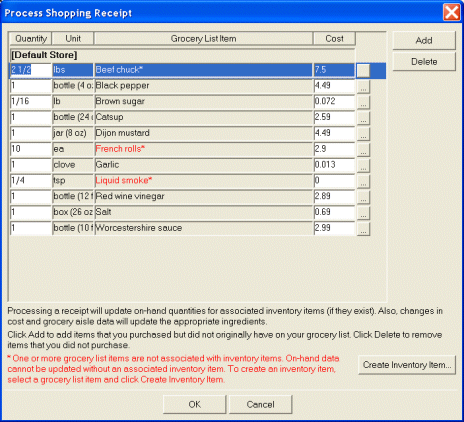
- Review the quantities and costs of the grocery list items. Update the quantities
and costs by typing in the appropriate boxes. Click the ellipsis button (...)
at the end of the grocery list item rows to change the store or grocery aisle.
- Look for grocery list items that are highlighted in red. These items are
linked to ingredients that are not associated with inventory items. To create
an inventory item for a grocery list item, select the item and click Create
Inventory Item.
- Click OK.